
Photo sorting for iPhone
Swipe it.
Sorted.
Go through your camera roll one photo at a time. Swipe up to trash it, sideways to file it in an album. Photos are grouped by date and place, so you always know where to start.
 Coming soon
How it works
Four directions, four decisions
One photo, one swipe.
Every direction has a job, so you spend less time hesitating. Put the albums you use most on the left and bottom.
- ↑Up
Trash
Nothing is deleted right away. Photos collect in the app's own trash, and even after you empty it, the Photos app keeps them for 30 days.
- →Right
Keep
Leave the photo where it is and move to the next one.
- ←Left
Album
Adds the photo to an album in the Photos app. Long-press the button to choose which album.
- ↓Down
Second album
A second favorite album, such as Travel, Family or Work.
- BButton
B-cut
Not sure? Set it aside as a B-cut and look at it again later.
AI cleanup
AI picks the photos you can let go.
Choose a time range and the AI chip in your iPhone looks at every photo. Check what it picked, then send them to the trash in one go.
Duplicates and bursts
Similar shots are grouped and the best one is kept. Long-press another photo to keep that one instead.
Blurry and shaky
Finds photos that are out of focus or blurred by movement.
Bad shots
Catches photos that are far too dark or bright, or taken by accident.
Utility shots
Receipts and screenshots are shown on their own, and you decide what goes.
- Pick how strict it is: gentle, normal or strict. Results update instantly.
- Results are saved, so next time only new photos are checked.
- Bursts are treated as one group and screenshots are set aside as utility shots. Sideways photos are turned upright before they're judged.
- Analysis keeps going after you close the screen, and runs through your library while charging.
- Everything is analyzed on your iPhone. Your photos are never sent anywhere.
Screens
Inside the app
Swipe up for trash, sideways for an album. A big sign on the photo shows where it is going.
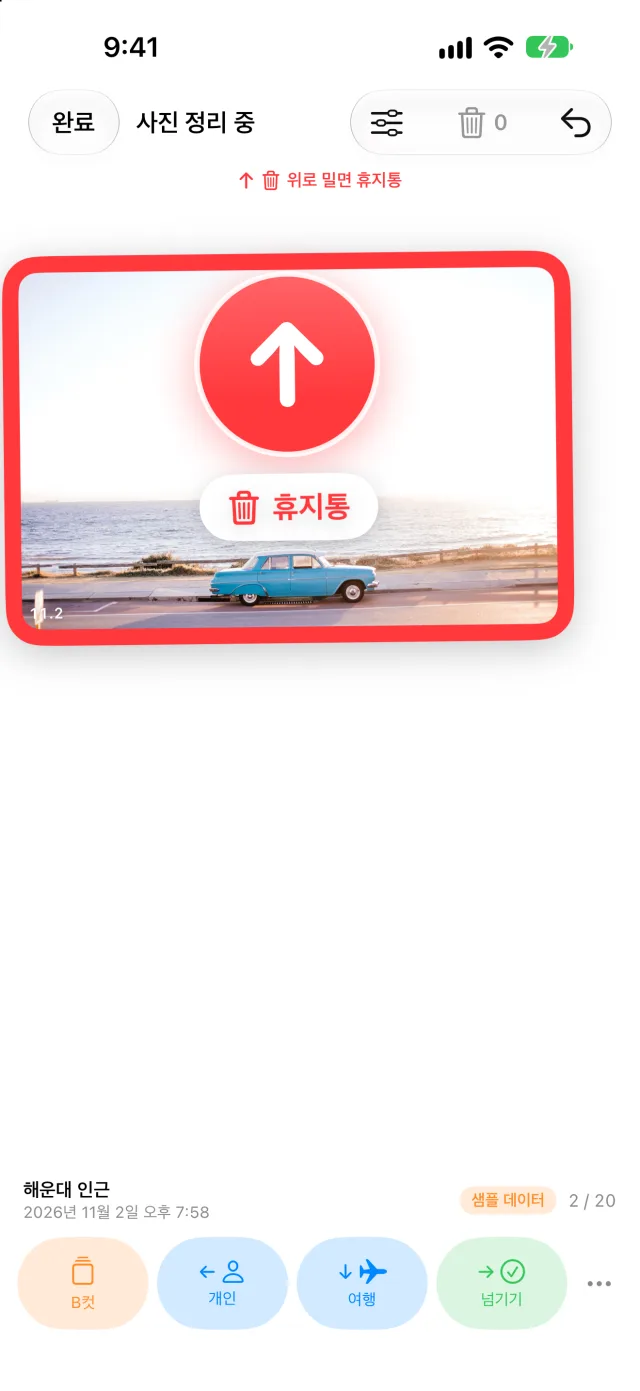
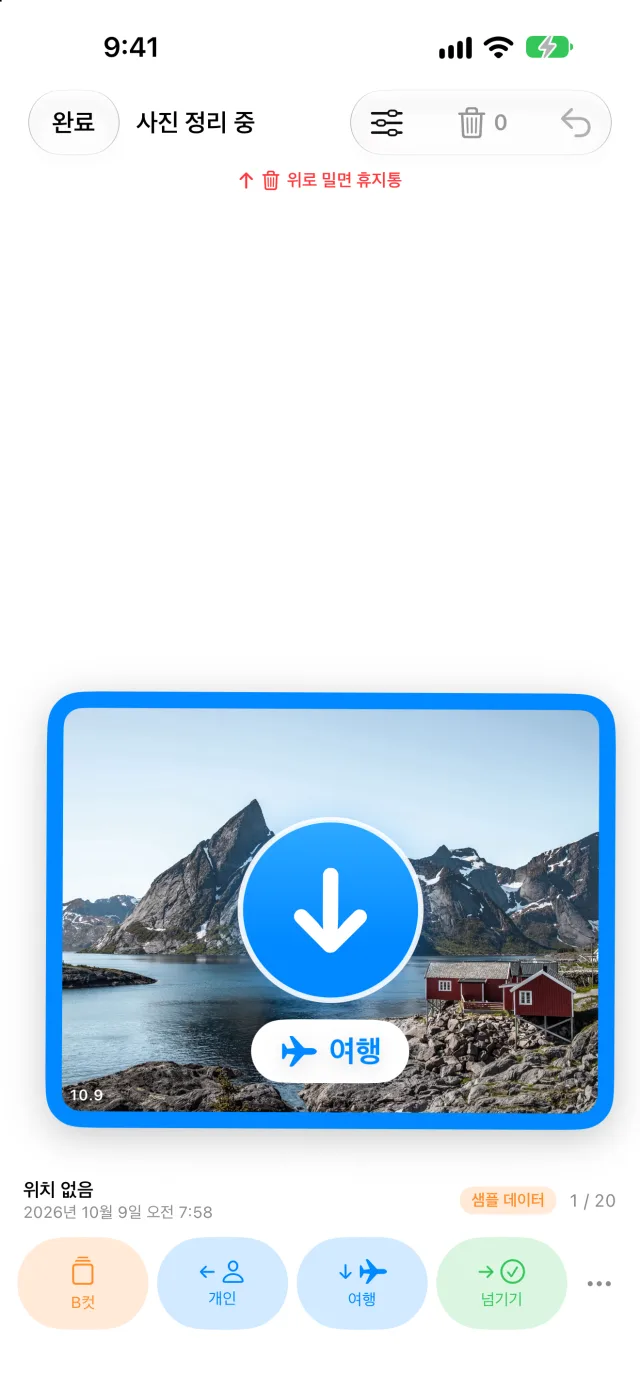
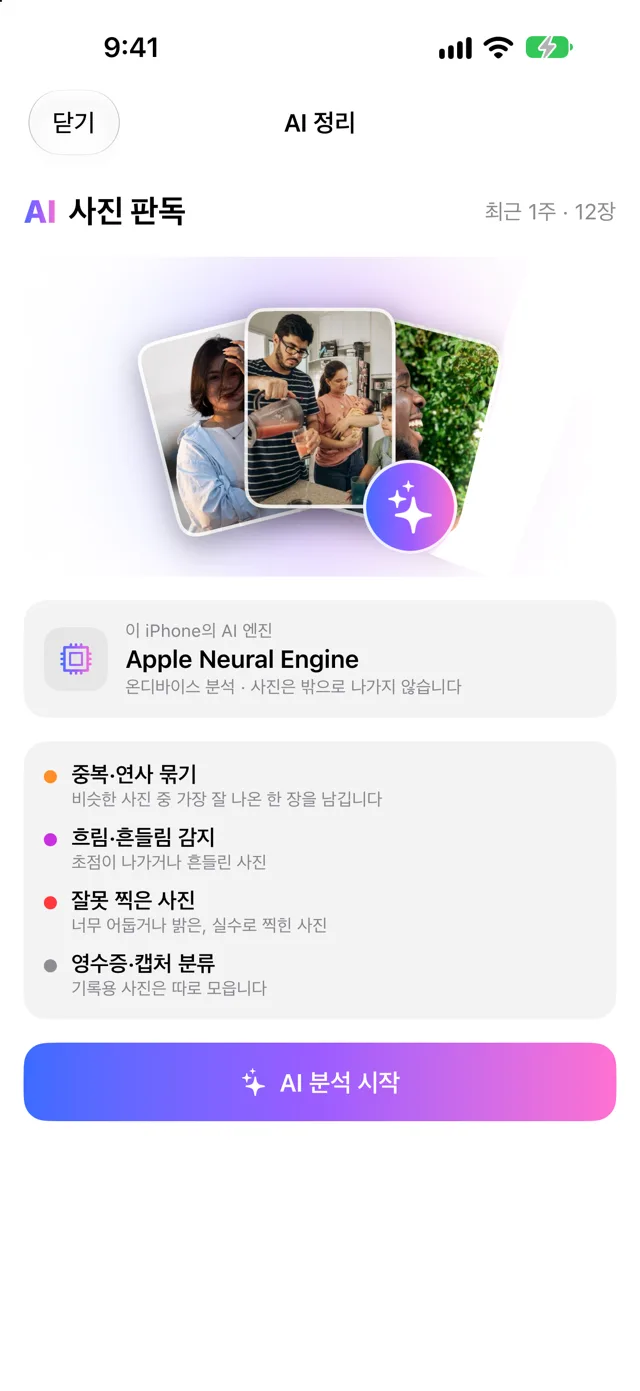
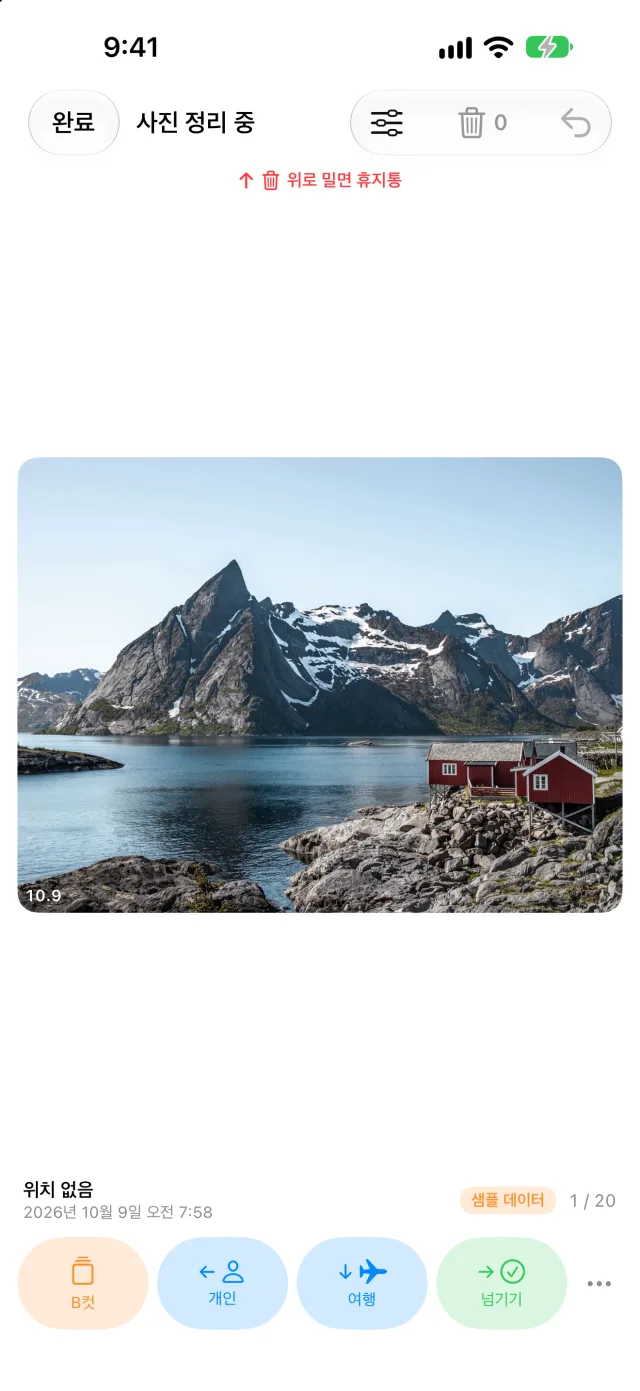
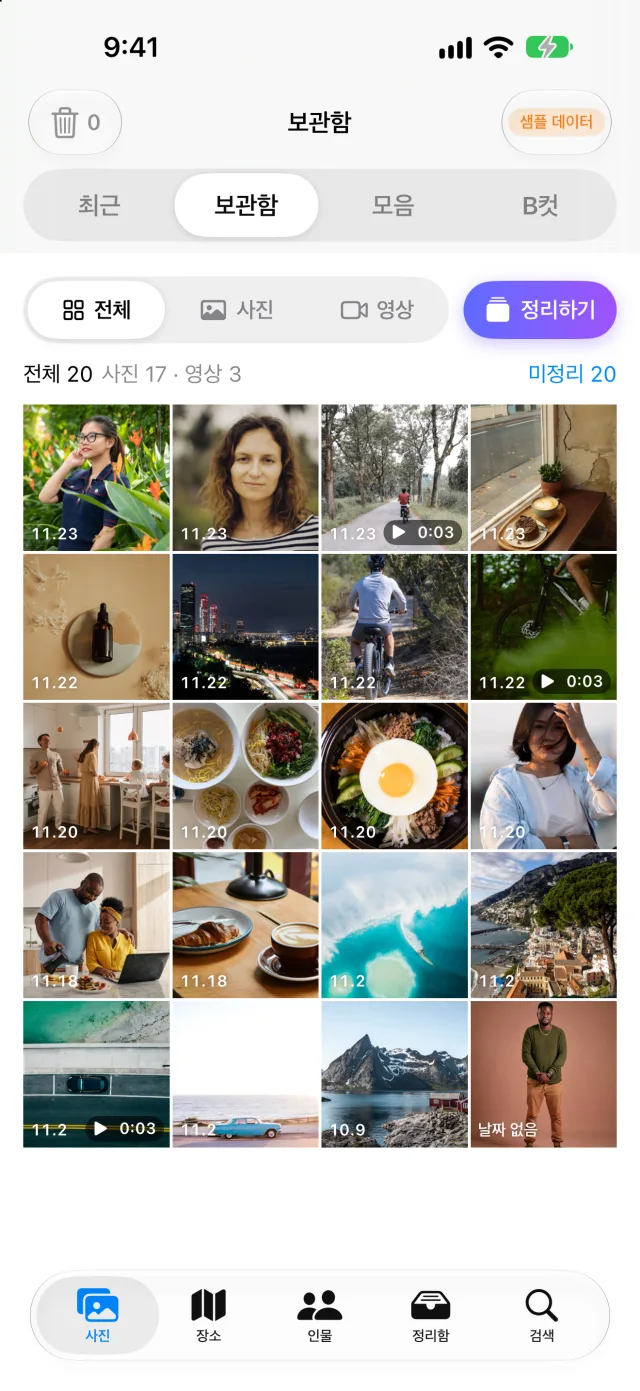
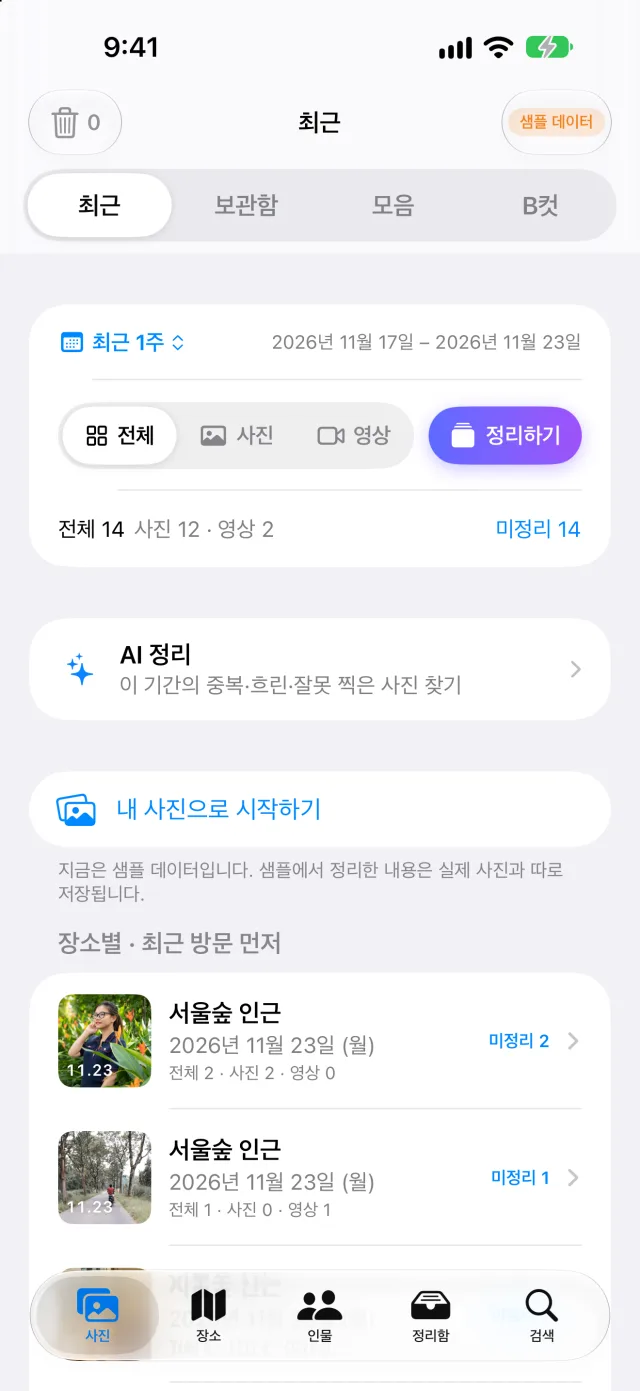
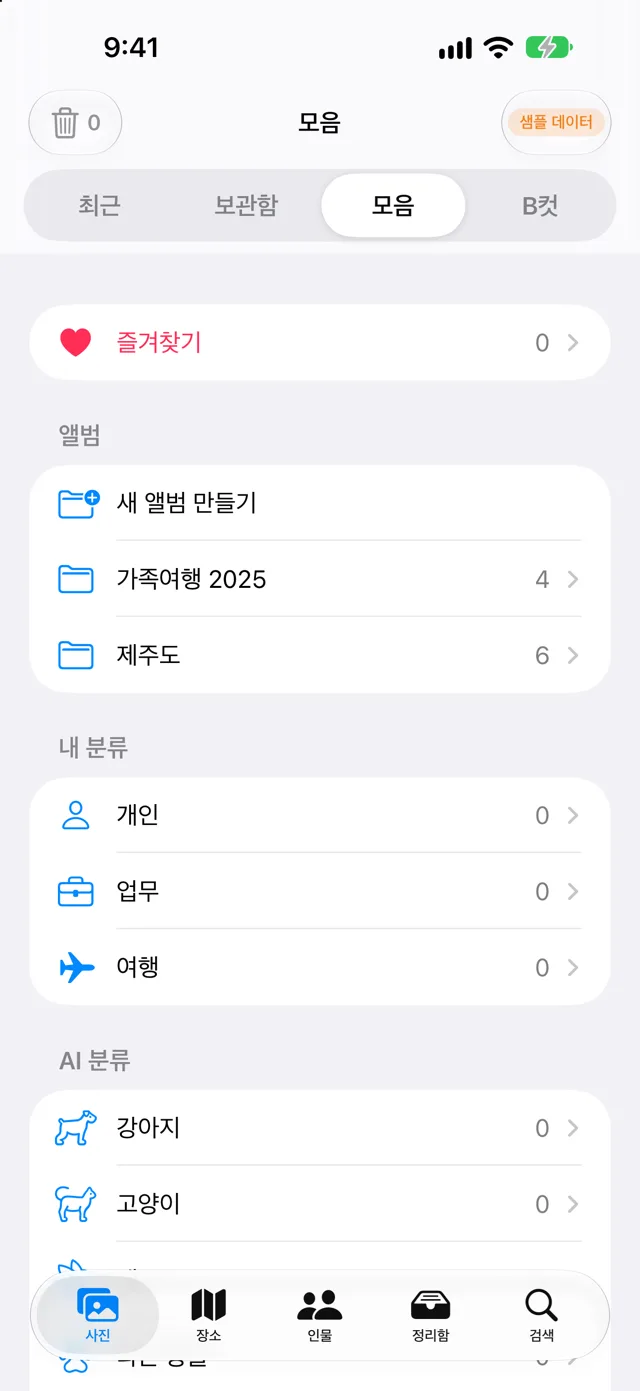
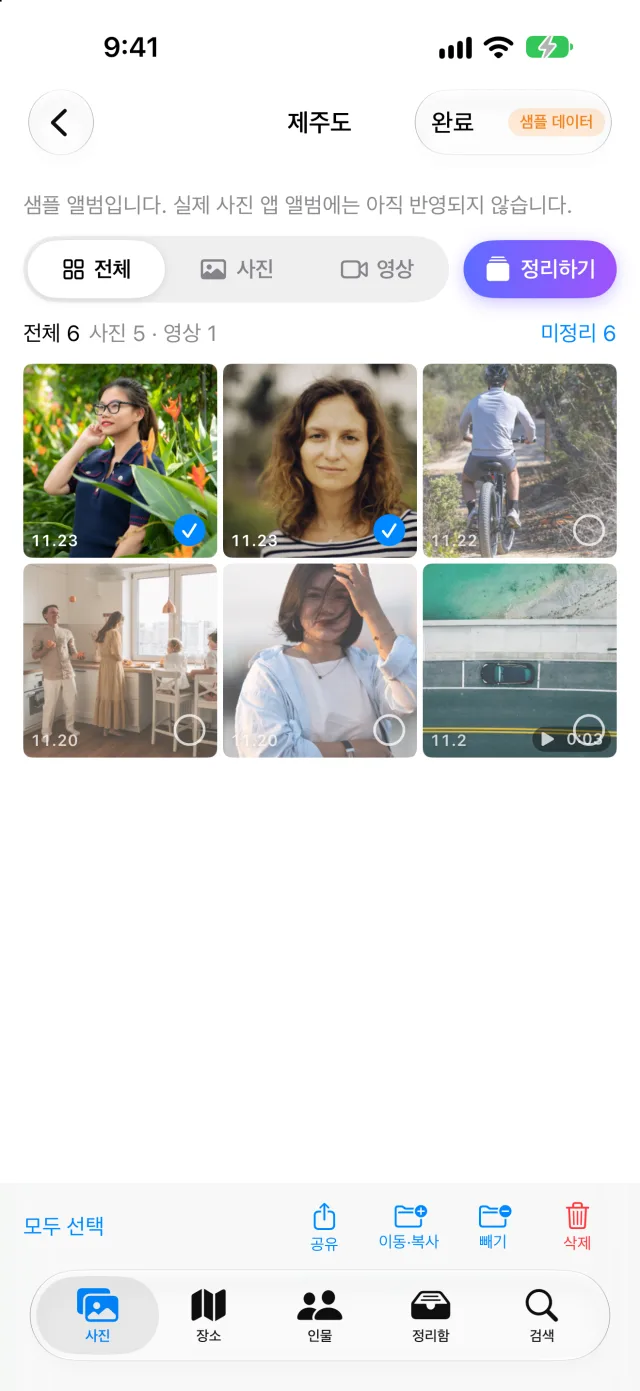
The app is shown in Korean. Photos on screen are Pexels sample images.
Features
Built to get you to the end.
You don't have to finish in one sitting. SortAlbum remembers where you stopped, and every decision lands in the Photos app.
By date and place
Pick a range like the last week or month and photos are grouped by where you took them. Places get real names, like a park or a station, instead of street addresses.
Hyde Park · Nov 22Pick up where you left off
Close the app mid-session and it remembers your spot. Start a new session and earlier decisions stay put.
Sorting 128 / 412Undo the last swipe
Swiped the wrong way? One tap on Undo puts the photo back.
Double-tap to favorite
Double-tap a photo to add the heart in the Photos app.
Search the way you talk
Mix dates, places and categories in one search.
Nov 20 Lisbon B-cutWorks with the Photos app
The albums you sort into are real Photos albums. Your results stay even if you delete SortAlbum.
Your existing albums too
Open albums you already have in the Photos app and sort them again.
Move and copy between albums
Move or copy selected photos to another album, and add a note to any album.
AirDrop a whole album
Send photos as they are, or as a single ZIP named after the album.
Lisbon.zipDogs and cats, sorted
AI finds photos of dogs, cats, birds, other animals and people and gathers them in Collections.
Dogs · Cats · BirdsSeven languages
Use the app in 한국어, English, 日本語, 简体中文, Deutsch, Español or Français.
All your B-cuts in one tab
Everything you set aside as a B-cut, in one place to sort again.
Tuned to your iPhone's AI chip
See your chip and its Neural Engine, then watch real sharpness, brightness and speed readings stream by while it works.
A17 Pro · 35 TOPSSharp subject, kept
Portraits and close-ups with a soft background aren't flagged as blurry, and the shot with the best face is kept first.
Privacy
Your photos stay on this iPhone.
SortAlbum has no upload server and no sign-up.
Read the full privacy policy →- Photos and videos are read and sorted on the device.
- Your sorting history is stored only inside the app and is never sent anywhere.
- Only to show place names, location coordinates are sent to Apple Maps. You can turn this off in Settings.
- No ads and no tracking.
- Before any photo is deleted, both the app and iOS ask you, and it goes to Recently Deleted.
- AI cleanup results (numbers like sharpness) are stored only on this iPhone.
FAQ
Questions
Does swiping up delete the photo?
No. Swiped-up photos only collect in the app's trash. They go to Recently Deleted in the Photos app only when you empty the trash yourself, and you can still recover them there for 30 days.
Which devices are supported?
iPhone with iOS 18 or later.
Can I allow access to only some photos?
Yes. SortAlbum shows only the photos you allow, and you can widen access in iOS Settings at any time.
Does it work offline?
Sorting works without the internet. Place names are fetched once from Apple Maps.
Does AI cleanup upload my photos?
No. Photos are analyzed on your iPhone with its AI chip, and results stay on the device. Nothing is sent anywhere.
Are photos picked by AI deleted right away?
No. Picked photos only go to the app's trash. They reach Recently Deleted in the Photos app only after you confirm in the trash. You can also change which photo to keep in a group of duplicates.
Can I see just my dog or cat photos?
Yes. After AI cleanup, Collections > AI categories shows dogs, cats, birds, other animals and photos with people. For people it only checks whether a face is visible; it never identifies who it is.
Can I change the app language?
Yes. Go to Organize > Settings > Language and choose 한국어, English, 日本語, 简体中文, Deutsch, Español or Français.